
Google Analytics for Ecommerce: Set Up GA4 Step by Step
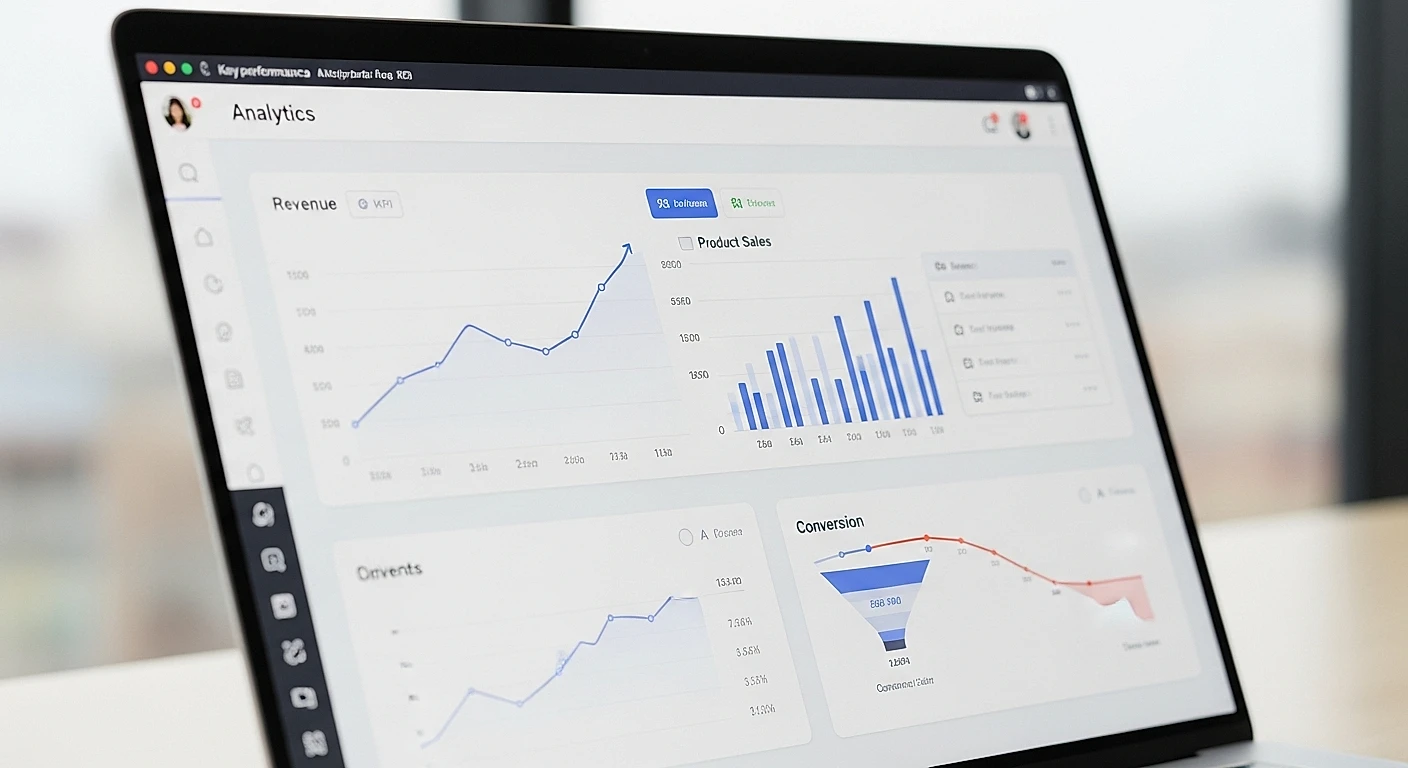
Google Analytics won't track a single sale for your online store until the purchase event is set up. On Shopify, ecommerce tracking connects natively in a few minutes. On WooCommerce or PrestaShop, it goes through a plugin or Google Tag Manager. Once the dataLayer is verified, the Monetization report shows your product revenue, average order value, and drop-off rate at each checkout step. Watch out for duplicate purchase events, which often inflate reported revenue by 20 to 40%. GA4 stays free well beyond the volumes any small business will ever generate.
The essentials
- GA4 tracks zero sales by default: without the purchase event set up, your revenue reports stay empty.
- On Shopify, ecommerce tracking activates natively; on WooCommerce, it goes through a plugin or Google Tag Manager.
- The Monetization > Ecommerce purchases report shows product revenue, average order value (AOV), and drop-off rate at each checkout step.
- A common tracking mistake inflates revenue by 20 to 40%: duplicate purchase events firing from two active tags at once.
- Google Analytics 4 stays free up to very high volumes; no small or midsize ecommerce business ever hits the GA360 paid threshold.
Table of contents
- What you need before setting up GA4
- Turn on ecommerce tracking for your CMS (Shopify, WooCommerce, PrestaShop)
- Set up the purchase event and checkout funnel steps
- Check that tracking works (and fix common errors)
- Read the Monetization reports to run your sales
- Is GA4 really enough, or does a small store need more?
- Track your ecommerce performance continuously with Lysible
- Frequently asked questions
What you need before setting up GA4
Three things are enough to get started: an active Google Analytics 4 account, admin access to your CMS (the software that runs your store, Shopify, WooCommerce, or otherwise), and, depending on your setup, a Google Tag Manager account. That's it.
Setting up a GA4 account takes a few minutes on analytics.google.com. When you create your property, Google generates a Measurement ID in the format G-XXXXXXXXXX. That's the identifier linking your store to your reports. Keep it handy for every step ahead. Without this ID correctly installed on your site, no data will ever come through.
Google Tag Manager (GTM, a tag management tool that runs your tracking scripts without touching your site's source code) isn't always necessary. On Shopify, you can skip it entirely. On WooCommerce and PrestaShop, it becomes useful the moment you want precise tracking. When I open a client's ecommerce account, the first thing I check is whether the Measurement ID points to the right property, not to an old Universal Analytics account that was shut down back in July 2023.
What do you need: a GA4 account, CMS access, Google Tag Manager?
You need a GA4 account, admin access to your store, and Google Tag Manager only if your CMS doesn't offer native ecommerce tracking. Shopify integrates GA4 without GTM. WooCommerce and PrestaShop require either a plugin or GTM. Budget 30 minutes for Shopify, 1 to 2 hours for the others.
Is Google Analytics free for an online store?
Yes, Google Analytics 4 is free for any small or midsize ecommerce business. The paid version, GA360, only becomes necessary beyond several million events collected per month. According to the official Google Analytics documentation, the standard property comfortably covers the volumes of an average online store. In years of auditing accounts, I've never come across a small business hitting that free ceiling. You won't have to pay.
Turn on ecommerce tracking for your CMS (Shopify, WooCommerce, PrestaShop)
The activation method depends entirely on your platform: Shopify connects natively, while WooCommerce and PrestaShop go through a plugin or Google Tag Manager. Here's a concrete comparison before you pick your path.
| Criteria | Shopify | WooCommerce | PrestaShop |
|---|---|---|---|
| Recommended method | Native (Google & YouTube channel) | Dedicated plugin or GTM | Official plugin or GTM |
| Setup time | 15-30 min | 1-2 hrs | 1-2 hrs |
| Technical level | Beginner | Intermediate | Intermediate |
| Ecommerce events included | Yes, automatic | Depends on plugin | Depends on plugin |
| Double counting risk | Low | High if GTM + plugin | High if GTM + plugin |
The critical point hides in the last row. When a plugin and Google Tag Manager both send the purchase event at the same time, your revenue automatically doubles. I'll come back to this later, because it's the mistake I fix most often on audited accounts.
How do you install Google Analytics on Shopify?
On Shopify, you install GA4 through the Google & YouTube sales channel from your admin, then connect your GA4 property. Your store then automatically sends purchase events. Go to Settings, then Apps and sales channels, add the Google channel, and link your account. The official Shopify guide for setting up Google Analytics 4 walks through every click. No code, no developer needed.
WooCommerce and PrestaShop: plugin or Google Tag Manager?
On WooCommerce and PrestaShop, go with a dedicated ecommerce plugin if you're just starting out, and Google Tag Manager if you want fine-grained tracking. The plugin pushes purchase and addtocart events without heavy configuration. GTM gives you more control, but requires building the dataLayer (the data layer that passes purchase information to GA4) and creating each tag manually. On an average WooCommerce store, a well-configured plugin is enough 8 times out of 10. Never run both methods in parallel.
Set up the purchase event and checkout funnel steps
The purchase event is the only one that makes your revenue appear in GA4. Without it, the Monetization report stays empty. The other events enrich your analysis of the customer journey, but purchase is the one that carries the money.
GA4 works with standardized ecommerce events, each marking a step in the journey. The Google documentation on measuring ecommerce in GA4 lists the exact dataLayer structure expected. Rather than turning everything on at once, I recommend prioritizing by business value.
| Event | What it measures | Business priority |
|---|---|---|
purchase |
Confirmed transaction, amount, products | Critical (the revenue) |
begin_checkout |
Entry into checkout | High (cart abandonment) |
add_to_cart |
Product added to cart | Medium |
view_item |
Product page viewed | Low |
add_payment_info |
Payment method entered | Medium |
Start with purchase and begincheckout. These two events alone give you the revenue and the exact point where visitors drop off before paying. The rest comes later, once you want to refine the analysis. For a store I worked with in early 2025 (around twenty products, home goods), the gap between begincheckout and purchase revealed a 64% checkout abandonment rate. A poorly placed address field on mobile was enough to explain the leak.
What is ecommerce tracking in Google Analytics?
Ecommerce tracking in Google Analytics links every purchase action to an amount and a set of products, so it can calculate your revenue and conversion funnel. In practice, your store sends GA4 a structured message for every transaction: which product, what price, what quantity. GA4 aggregates these messages into the Monetization report. To put this tracking in a wider context, our guide on using web data analysis to decide faster offers a useful perspective.
Which events should you track: viewitem, addtocart, begincheckout, purchase?
Prioritize purchase and begincheckout, then addtocart, and finally viewitem if you want to analyze product interest. This hierarchy reflects real decision-making value: purchase measures the money, begincheckout locates checkout abandonment, addtocart reveals purchase intent. Too many stores turn on all four and never actually open the viewitem data. Two events you actually use beat five you ignore.
Check that tracking works (and fix common errors)
Before trusting your numbers, test a real purchase and check that it shows up in GA4 in real time. A setup that looks correct can still send false data. Verification takes ten minutes and saves months of decisions based on inaccurate figures.

Open GA4's Realtime report, place a test order on your store, and check that the purchase event shows up with the correct amount. If nothing appears, the dataLayer isn't sending the purchase. If the amount is doubled, two active tags are firing in parallel. GA4's DebugView shows every event received live, with its parameters: it's the most useful diagnostic tool at this stage.
Duplicate purchase counting remains the number one error I run into. This problem inflates reported revenue by 20 to 40% on audited accounts. The cause is almost always the same: a native GA4 tag from the CMS coexists with a GTM tag, both sending the same transaction. The result: an 80 € order counted twice becomes 160 € of phantom revenue. Every one of your Google Ads budget decisions then rests on revenue that doesn't exist.
This same mechanism also distorts your data-driven Google Ads ROI tracking, since ROAS gets calculated on overstated revenue.
How do you know if your dataLayer is actually sending purchases?
Turn on DebugView in GA4, place a test order, and check that the purchase event appears with a unique transaction_id, the correct amount, and the list of products. If purchase is missing, your dataLayer isn't pushing the transaction. If products are missing, the items array is malformed. Google's Tag Assistant extension complements this check by showing which tags fire on each page.
Why is your revenue wrong or doubled in GA4?
Your revenue almost always doubles because two purchase tags are active at once: one native to the CMS, one via Google Tag Manager. Turn one of them off. Also check that every transaction carries a unique transaction_id: without this identifier, GA4 can't deduplicate reloads of the confirmation page. A customer who refreshes their thank-you page can end up having their purchase counted multiple times. This is the first thing to rule out before any serious analysis.
Lysible catches this kind of counting anomaly directly in your GA4 sales flow, before it skews an entire month of reporting.
Read the Monetization reports to run your sales
The Monetization report, under Ecommerce purchases, centralizes the four numbers that really run a store: product revenue, average order value, conversion rate, and step-by-step abandonment. No need to dig through twenty menus. These four data points are enough to decide.
The average order value (AOV, meaning the average amount spent per order) tells you whether to push cross-sell or rethink your pricing. Revenue by product identifies your real bestsellers, sometimes different from what you think you're selling. Conversion rate measures the overall efficiency of the journey. Step-by-step abandonment points to the exact spot where you're losing money.
According to our conversion rate data, ecommerce statistics for France put the average between 1.5% and 3% depending on the sector. If your store converts at 0.8%, the problem is probably in the funnel, not in acquisition. The Google documentation on the Ecommerce purchases report details every available column.
| KPI in GA4 | Decision it triggers |
|---|---|
| Average order value (AOV) | Turn on cross-sell, free shipping threshold |
| Revenue by product | Reallocate ad budget toward bestsellers |
| Conversion rate | Diagnose the funnel if below sector average |
| Step-by-step abandonment | Fix the page with the biggest leak |
To structure these numbers into a view you can actually use day to day, our method for building a useful Google Analytics dashboard shows how to keep 6 to 8 metrics directly tied to your decisions.
How do you analyze ecommerce data in GA4?
Start from step-by-step funnel abandonment, then work back toward conversion rate and average order value. This top-down reading first locates the costliest leak. A 70% checkout abandonment rate deserves more attention than a slightly low average order value. Then cross-reference with the Acquisition report to find out which channels bring in visitors who actually buy.
What are the main ecommerce KPIs to track?
The four priority KPIs are revenue, conversion rate, average order value, and customer acquisition cost. Together, these indicators tell the story of a store's health: how much you earn, how efficiently, at what average ticket, and at what acquisition cost. For the full list adapted to smaller businesses, our 10 digital marketing KPIs for small business owners breaks down each benchmark.
Is GA4 really enough, or does a small store need more?
GA4 tells you how much you're selling and where things get stuck, but it never tells you why a visitor abandons. For a small business, that blind spot changes everything. Google's documentation presents GA4 as the complete solution. On the ground, it's more nuanced.

GA4 excels at the quantitative: how many checkout abandonments, what revenue, which channel performs. But when the report shows 64% abandonment at the address step, it doesn't show which field is blocking, which validation error is frustrating people, or which button is invisible on mobile. The why stays out of frame. Yet it's the why that wins you sales.
This is where behavior tools like Hotjar usefully complement GA4. Hotjar records sessions and draws click maps, which amounts to watching over your visitors' shoulders as they browse. You see GA4 flag the leak, then you watch the recording to understand the exact move that fails. Matomo, the privacy-friendly French alternative, also offers built-in heatmaps. The combination of transaction measurement plus behavior insight beats GA4 alone, especially for a small store where every sale counts.
My verdict after years of audits: GA4 is necessary but rarely sufficient for a small ecommerce business. It gives you the diagnosis, not the treatment. To go further, our method for conversion rate optimization for small businesses shows how to locate funnel leaks before fixing them.
Track your ecommerce performance continuously with Lysible
Setting up GA4 is one thing. Checking it every week while juggling Analytics, Search Console, and Google Ads is another, especially without a dedicated data expert. That's exactly the problem Lysible solves: centralizing your ecommerce data, SEO visibility, and ad campaigns in one clear view, built for small businesses and freelancers. No more switching between three interfaces or interpreting raw numbers. You see your revenue, your abandonment, and your traffic sources connected, with actionable insights instead of tables to decipher. Enough to run your store without depending on an agency or spending your evenings on it.
Frequently asked questions
Do you need a developer to set up GA4 for ecommerce?
No, a developer isn't necessary for most stores. On Shopify, ecommerce tracking activates natively in a few clicks through the Google channel. On WooCommerce and PrestaShop, a dedicated plugin installs the purchase and addtocart events without touching any code. Google Tag Manager lets you go further without coding, by configuring tags through a visual interface. A developer only becomes useful for complex cases: custom-built stores, a custom dataLayer, or multi-domain integrations. For 80% of small businesses, setup takes one to two hours, with no advanced technical skills required.
How do you set up the purchase event in GA4?
To set up the purchase event, your store needs to send GA4 a structured message for every confirmed order, containing a unique transactionid, the total amount, the currency, and the list of products. On Shopify, this happens automatically once the Google channel is connected. On WooCommerce or PrestaShop, an ecommerce plugin or a Google Tag Manager tag handles it. Then check in the Realtime report or DebugView that a test purchase comes through with the correct amount. The transactionid is essential: it stops GA4 from counting an order twice if the confirmation page gets reloaded.
Is Google Analytics free for an online store?
Yes, Google Analytics 4 is completely free for an online store, regardless of your sales volume as a small business. The paid version GA360 is only for very large sites exceeding several million events a month. No modestly sized store ever reaches that ceiling. You get free access to the Monetization reports, transaction tracking, funnel analysis, and acquisition data. The only real limit is how long detailed data is retained, which you can set up to 14 months in your property settings.
Why is your revenue doubled or wrong in GA4?
Your revenue is almost always doubled because two tags send the same purchase event: one native to the CMS and one via Google Tag Manager. Turn off one of the two to fix the problem. Another common cause is the lack of a unique transaction_id, which stops GA4 from deduplicating purchases when a customer reloads their thank-you page. This double counting often inflates reported revenue by 20 to 40% on audited accounts. Always verify with a test order in DebugView before basing your budget decisions on these numbers.
How do you install Google Analytics on Shopify?
On Shopify, install Google Analytics 4 through the Google & YouTube sales channel from your admin. Go to Settings, then Apps and sales channels, add the Google channel, connect your Google account, then link your GA4 property. Your store then automatically sends ecommerce events, including purchase. No code is required. Budget 15 to 30 minutes. Then verify everything works by placing a test order and checking GA4's Realtime report. This is the official method Shopify recommends for stores of any size.
What is ecommerce tracking in Google Analytics?
Ecommerce tracking in Google Analytics is the setup that links every purchase action to a specific amount and set of products. Without it, GA4 measures traffic but ignores your sales. Once activated, your store transmits the details of every transaction: products bought, price, quantities, currency. GA4 aggregates this data in the Monetization report, which calculates your revenue, average order value, and conversion rate. Ecommerce tracking also covers earlier steps in the journey, like cart additions and checkout entries, to pinpoint exactly where visitors abandon before buying.

Isaac SIKORSKI
With Lysible, I want to give businesses back control of their online presence. A website you actually understand is one that brings in real opportunities.