Google Ads Editor: install and manage your campaigns
Google Ads Editor is Google's free desktop app to create, bulk edit, and publish campaigns offline, then sync in one click. You download your account, work without a connection, review, then publish. Its real value: bulk edits (copy-paste between campaigns, text replacement, bid adjustments) that cut the time spent in the web interface by five on large volumes. Available for Windows and macOS, it needs regular updates to stay compatible with new formats.
Key takeaways
- Google Ads Editor is 100% free and works offline: you download the account, work on it, then publish.
- Bulk edits (copy-paste between campaigns, text replacement, bid adjustments) save considerable time compared to the web interface.
- The tool exists for Windows and macOS; the current version means you have to check for regular updates to stay compatible with new campaign types.
- The 'Check changes' feature catches errors before publishing: no campaign is changed online until you click 'Publish'.
- Editor doesn't replace performance analysis: it's built to produce quickly, not to decide where to put the budget.
Contents
- What Google Ads Editor is for and when to use it
- Installing Google Ads Editor on Windows or Mac
- Downloading your account and finding your way around the tool
- Editing campaigns in bulk: the moves that save time
- Reviewing, publishing, and avoiding common mistakes
- What to check before touching a single bid
- From an account you endure to one you steer
- Frequently asked questions
What Google Ads Editor is for and when to use it
Google Ads Editor pays off as soon as an account goes beyond a few campaigns. As soon as you repeat the same moves across several ads. Below that, the web interface is enough.
The tool serves a simple goal: produce fast, without a connection. You download a copy of your account onto your computer. You work on it offline. Then you send your changes back all at once. Nothing goes live until you click "Publish". This split between the local draft and the real account is what makes the app worthwhile for anyone who fears a wrong click.
I never switch to the app for a two-campaign account: the effort of installing and learning a second interface simply isn't justified. The relevant threshold sits around three or four active campaigns, and it comes from usage, not from any official documentation.
Web interface or Ads Editor: which for what?
The web interface stays unbeatable for analyzing, deciding, and launching a one-off campaign. Editor wins as soon as you need to act at scale or work without a reliable connection.
| Need | Web interface | Google Ads Editor |
|---|---|---|
| Analyze performance | Recommended | Limited |
| Edit 1 to 2 ads | Recommended | Not advised |
| Edit 50+ ads | Limited | Recommended |
| Work offline | No | Yes |
| Manage multiple accounts | Partial | Recommended |
| Reports and charts | Recommended | No |
Keep in mind: Editor shows no trends, no charts, no recommendations. It executes. To understand where your budget goes, you stay on the web side or cross-reference your data elsewhere.
Is Google Ads Editor free?
Yes, completely free. No paid version, no subscription. Google offers it as a management tool alongside its advertising interface, just like the mobile app.
No usage limit, no account or campaign quota. You only pay your actual advertising budget, exactly as through the browser. According to the official Google Ads Editor documentation, the tool covers nearly all editing features, which makes it the default choice for teams handling volume day to day.
Installing Google Ads Editor on Windows or Mac
Always download the app from Google's official page. Never from a third-party site promising an "optimized" version. Installation takes less than five minutes on both systems.
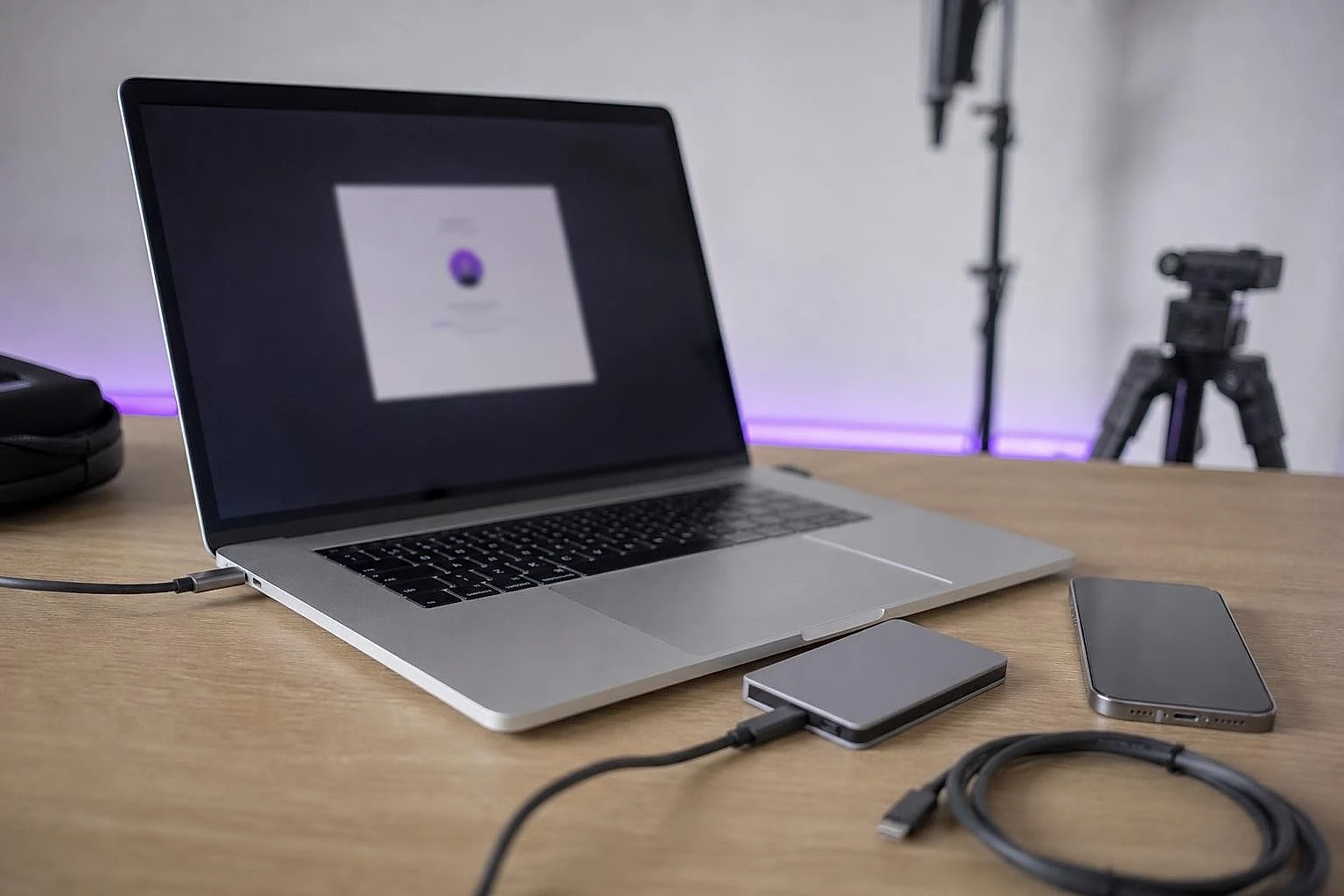
The app comes in two native versions: one for Windows, one for macOS. Same features, same interface. That's a real relief for freelancers on Mac, often left aside by advertising tools.
The process is broadly identical. You get the installer file, you launch it, you accept the terms, and the app installs. On first launch, it asks you to sign in with your Google account. Nothing else.
Where to safely download the official version?
The only reliable source: Google's download page. Any other origin risks a modified or outdated version, incompatible with recent formats.
Go to the official Google Ads Editor page, click the button matching your system, and run the file you get. Windows offers a standard .exe, macOS a .dmg. One reflex protects you from most nasty surprises: never click the first link that shows up in a search engine for this kind of download.
System requirements and the offline installer (MSI)
A recent computer running Windows 10 or 11, or a Mac on a maintained macOS version, is more than enough. The app is lightweight, with no heavy configuration needed.
For agencies and freelancers managing several machines, Google also provides an installer in MSI format (a Windows deployment file). This offline installer lets you set up the app on several machines without going through a fresh download each time, or deploy it through a fleet management tool. Few small setups need it, but it's handy when equipping several team members at once.
Downloading your account and finding your way around the tool
The first step after installation: download your account. In practice, you create a local copy of all your campaigns on your computer. This copy becomes your workspace.
On launch, the app asks you to sign in, then to add an account. You choose to download the whole thing or only part of it (a single campaign, for example). On a large account, a partial download starts far faster. Once the copy is retrieved, everything happens locally, with no connection needed.
One point deserves attention. This copy freezes your account's state at the moment of download. If someone edits a campaign from the web while you work in Editor, your copy doesn't know it. Reload regularly to avoid conflicts, especially when several people are involved.
Adding one or several accounts
You can manage several Google Ads accounts in the same app. A major asset for freelancers and small agencies. Each account is added once, then stays accessible in one click.
If you work with a Google Ads Manager account to run several client accounts, Editor can connect to it and list the linked accounts. You switch from one to another without signing out, without juggling several logins. For an agency managing five or ten budgets, this point alone justifies the install.
Understanding the campaigns, ad groups, ads tree
The left column shows your account as a tree: campaigns, ad groups inside them, ads and keywords within each group. Same logic as on the web, only denser.
Click a campaign: you see its ad groups. Click a group: you see its ads and keywords in the central panel. This layered organization is the heart of the tool. It lets you select all items of a specific type at once, which makes possible the bulk editing covered next.
Editing campaigns in bulk: the moves that save time
Bulk editing is the whole reason Google Ads Editor exists. It turns dozens of repeated clicks into a single action. This is where the app delivers time savings hard to reach on the web side.
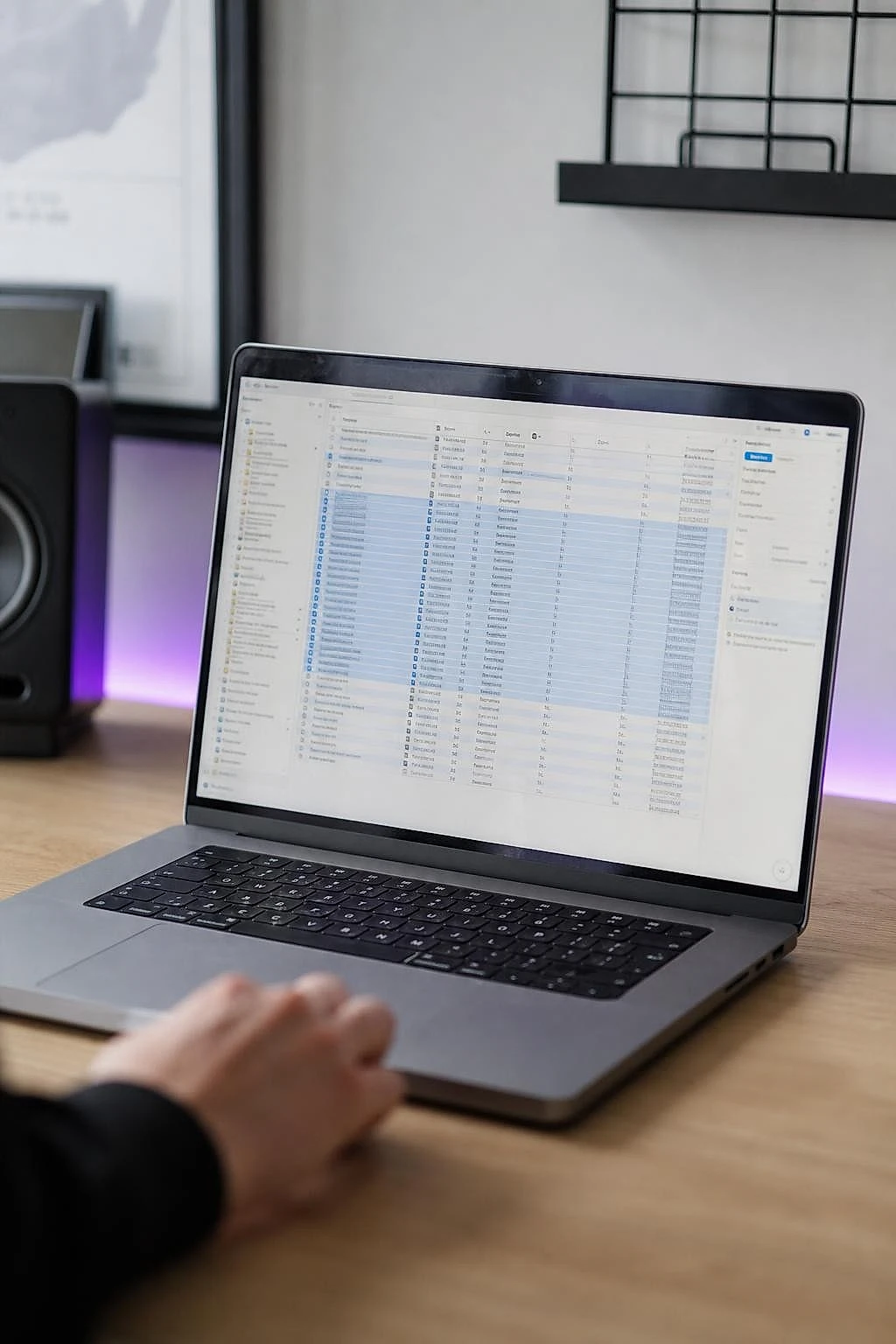
Take a concrete case. An online store with a seasonal catalog wants to rework 200 ads before the holidays: new tagline, new promotion, updated URL. On the web interface, that means opening each ad, editing, saving, moving to the next. Count a full day, with the risk of missing some. In Editor, you select the 200 ads, replace the relevant text in one operation, and check the whole thing at a glance. You go from several hours to under one, without exaggerating.
Copy-paste between campaigns and accounts
You copy a whole ad group from one campaign to another, and even from one account to another, in a few seconds. Impossible to do this fast on the web.
It's the move I use most to duplicate a structure that works. Have a well-built campaign? Copy it, paste it, rename, adjust the keywords: you have a second campaign in five minutes. The copy-paste preserves the entire tree. Groups, ads, keywords, and bids come along together.
Replacing text and adjusting bids in bulk
The text replacement feature changes a word or phrase across all selected ads in a single move. Bulk bid adjustment follows the same logic.
A phone number to change everywhere, a lingering typo, a "-10%" that became "-15%": you fix it all at once. For bids, you raise or lower by a percentage across a whole selection, or set a common value. You add your negative keywords (the terms you don't want to appear on) to several campaigns in one move. This kind of gain alone justifies learning the tool.
Working offline, then publishing
You edit without an internet connection, on the train or in a place without reliable wifi. You sync once reconnected. Nothing goes live before your approval.
In practice, you prepare a full overhaul at ease, without real-time pressure. When you're ready and connected, you publish. This draft mode also protects against mistakes: until you've published, your real account stays untouched.
Reviewing, publishing, and avoiding common mistakes
Always review your changes before publishing. No exception. It's the only safety net between your draft and a real account where money is spent every day.
Google's docs highlight the speed of bulk publishing. That's true, and it's valuable. Except that for a small business without a dedicated team, speed hides a real danger: an error repeated across 200 ads with one click is still an error across 200 ads. I've seen budgets go sideways because of a bid inflated by one extra zero, applied in bulk. For a small setup, control before publishing always beats speed. That reflex is one no one regrets.
What mistakes should you avoid with Google Ads Editor?
The most costly one: publishing without reviewing a change applied in bulk. Then come forgetting to reload the account and working on an outdated version.
Three traps come up often. Spreading an error in bulk without seeing it, for lack of a review. Overwriting a change made meanwhile on the web because your local copy was old. Forgetting to publish and believing your changes are live when they sit locally. Each is solved with two habits: reload before starting, review before publishing.
Using 'Check changes' before publishing
The "Check changes" feature scans your draft and flags blocking errors before any upload. It's your built-in safeguard.
Before clicking "Publish", run this check. The app lists the issues: ad too long, invalid URL, group without a keyword, non-compliant format. You fix them, run it again, and only then publish. This check takes thirty seconds and avoids rejections by Google or, worse, active but poorly built ads. On the campaigns I review, it's the box beginners skip most often.
Managing app updates
Update Google Ads Editor as soon as a new version comes out. Older ones become incompatible with recent formats. An outdated version can block publishing.
Google changes its campaign types regularly, and Editor follows with its own versions. According to the official Editor release notes, each update adds support for new formats and fixes bugs. Working on a version from a year ago means risking not seeing your responsive ads or new campaign types. The app flags updates on launch: don't put them off indefinitely.
What to check before touching a single bid
Google Ads Editor produces fast. It never tells you what to produce. Editing 200 ads in bulk is pointless if you don't know which ones bring in returns and which ones burn budget.
This is the tool's blind spot. It executes your decisions, it doesn't make them. Before raising a bid in bulk or reworking a group, you need to know what each campaign actually generates, which means linking your Google Ads campaigns to GA4 to make your conversions reliable. Without that link, you edit blind. The right question isn't "how to edit fast", but "what to edit": it's settled in the data, not in Editor.
Deciding between managing it yourself and delegating depends mostly on your media budget. Below €1,500 to €2,000 a month, tooled-up in-house management often stays more profitable than a Google Ads agency. Editor is then part of the toolkit for the owner who keeps control. What's left is feeding it good decisions, made from clear numbers rather than gut feeling. It's that crossover between real performance and fast action that makes self-managed campaigns viable over time.
From an account you endure to one you steer
You now know how to produce fast in Google Ads Editor. What's left is the real subject: knowing where to put the effort. Editing 200 ads in an hour only counts if you target the right ones. Most owners I meet master the mechanics, but struggle to link what they change to what it earns. That crossover, between the real cost per acquisition, each campaign's return, and the action to take, is exactly what we brought together in Lysible. Editor remains your workshop for acting; you still need a dashboard telling you what to act on first.
Frequently asked questions
Is Google Ads Editor free?
Yes, Google Ads Editor is entirely free, with no subscription or premium version. Google offers it as a management tool alongside its advertising interface. You only pay your actual advertising budget, exactly as through the browser. There's no limit on the number of accounts, campaigns, or edits. The app covers nearly all the editing features available on the web, according to Google's official documentation. It's the default choice for teams and freelancers handling volume, with no extra cost to plan for beyond campaign spend.
How do you download and install Google Ads Editor?
Go to the official Google Ads Editor download page, never to a third-party site. Click the button matching your system, Windows or macOS, then run the file you get. Windows provides a .exe, macOS a .dmg. Follow the installation, accept the terms, and the app installs in a few minutes. On first launch, sign in with your Google account, then download your account to create your local working copy. To equip several machines, Google also offers an installer in MSI format, handy for an agency deployment.
What's the difference between Google Ads Editor and the web interface?
The web interface is for analyzing, deciding, and launching one-off campaigns, with its reports and charts. Google Ads Editor is for producing fast and in bulk, offline. It shows no trends or recommendations: it executes your changes. Editor wins whenever you need to edit dozens of ads, duplicate a structure, or work without a connection. The web stays essential to understand where your budget goes. In practice, you decide on the web, produce in Editor, then publish and re-measure the results.
What mistakes should you avoid with Google Ads Editor?
The most costly is publishing a bulk change without reviewing it, since an error then spreads across all ads with one click. Two other traps come up often: working on an outdated local copy, which overwrites changes made meanwhile on the web, and forgetting to publish while believing your changes are live. The fix comes down to two moves: reload the account before starting, and run "Check changes" before publishing. This thirty-second check avoids rejections and misconfigured ads that spend budget.
Does Google Ads Editor work on Mac?
Yes, Google Ads Editor has a native version for macOS, with the same features and the same interface as on Windows. There's no compromise for Mac users: bulk editing, offline mode, multi-account management, it's all there. Download the .dmg file from Google's official page, install it like any other app, then connect your account. A Mac on a maintained macOS version is more than enough, as the app is lightweight. It's a real asset for freelancers working on Mac, often overlooked by advertising tools.
Can you manage multiple accounts with Google Ads Editor?
Yes, the app manages several Google Ads accounts at the same time, which makes it a valuable tool for freelancers and small agencies. Each account is added once, then stays accessible in one click without signing in again. If you use a Google Ads Manager account to centralize your clients, Editor connects to it and lists all the linked accounts. You switch from one to another instantly and can even copy-paste campaigns between accounts. For a setup running five to ten budgets, this multi-account management alone justifies installing the app.
How do you publish your changes in Google Ads Editor?
Once your changes are done and reviewed, click the "Publish" button at the top of the app. Until you click, no change affects your real account: everything stays local. Before publishing, be sure to run "Check changes" to spot blocking errors, like an ad too long or an invalid URL. Fix if needed, run the check again, then publish. The app then syncs your changes with the online account. You must be connected to the internet for this final publishing step.
Do you need to update Google Ads Editor regularly?
Yes, you need to update the app as soon as a new version comes out, or risk incompatibility with recent formats. Google changes its campaign types regularly, and Editor follows with its own versions. An old version may not handle responsive ads or new campaign types, and sometimes block publishing. The app flags available updates on launch: don't put them off indefinitely. Each update adds support for new formats and fixes bugs, according to Google's official release notes.

Isaac SIKORSKI
With Lysible, I want to give businesses back control of their online presence. A website you actually understand is one that brings in real opportunities.